 by The Cubist
May 23, 2014

At some point in the near future, I’d like to chronicle my emulation exploits; for now it entails a couple of Castlevania releases, but this is potentially useful information for anyone into emulation. Using the PS4 controller with my laptop is just one of several steps I’ve taken to make the experience of playing games on my computer more comfortable for myself. Besides strict emulation, you can use this to play with your DualShock 4 in any game that supports the Xbox 360 controller. Read on to learn how to use a DualShock 4 controller on your PC.
Please note that this procedure only describes how to make your PC think that a 360 controller is being used when in actuality a PlayStation 4 DualShock 4 is being used. It will not increase functionality for programs that do not support the 360 controller. In order to ensure that you can use your DS4 in all or most circumstances, please see the section about key mapping near the end. Getting your PC to recognize the DS4 as a 360 controller is the first step so that key mapping is then possible.
Despite the borderline obscene mounds of console gaming hardware I have, sometimes emulation is the only way to experience certain games. When one really starts digging deep into the plethora of gaming subsets, invariably one reaches “that one game” that never saw an American release, or perhaps a notable version only ever saw the inside of an arcade cabinet, or maybe obtaining the original hardware just isn’t feasible. Emulation offers a way around all of this (most of the time) and provides advantages of its own: it’s free, requires very little physical space, and circumvents annoyances that old console users are all too used to by now like dust, incompatible A/V outputs, and woesome controller layouts.
Well, not quite. For those of us without any extra computer peripherals, for all that emulation allows, it also forces us to use the existing QWERTY keyboard layout in cumbersome fashion. On the whole I prefer to use “the real thing” whenever possible, but there are some instances where emulation is unavoidable, yet I have long been deterred because of the unorthodox controls that a standard keyboard provides. Directions are on the right, action buttons are on the left, and to top it off I can’t use my thumbs. Turns out that plugging a controller into your computer isn’t that hard.
You can go out and buy a special PC controller, or you can use an existing Xbox 360 controller, as Variand brought to my attention one day. Come to find out, I don’t have an appropriate corded 360 controller to use on my PC, nor do I have the wireless receiver that Microsoft mentions on their website to use my wireless controller. Logically I would’ve expected my Xbox One controller to work, but it didn’t. Windows didn’t recognize it and couldn’t locate any drivers on the Internet either. Since the Xbox One controller uses the same connector as the DualShock 4 (that’s the PS4 controller), the DS4 seemed to be the next reasonable course of action.
Windows will recognize the DS4 as a wireless controller, but that’s about it. It won’t actually do anything. However, some clever individual developed a special tool that makes your PC think the DS4 is a 360 controller! It’s not likely that flocks of people will need to know how to do this, but it is useful for specific situations like mine.
I found this utility thoroughly tucked away on a message board somewhere. I don’t know if any official website exists or if so where it’s kept, but it doesn’t much matter. This is a pretty straightforward program and you’ll be up and running in no time.
First, download DS4Tool 1.2.2 from right here at The Bacon. When finished, go ahead and extract the files to their own folder. I’m not sure if it matters or not, but to be safe, make sure your DS4 is not plugged into your PC before continuing.
Go into whatever folder you’ve extracted the files to, and go into the Virtual Bus Driver folder. There you’ll see a program called ScpDriver. Run it. It make take a few seconds, just let it do its thing. When it’s finished, you should see that the Bus Driver and Bus Device have been successfully installed. You can now close the application.
Now connect your DS4 to your PC using one of your PS4 or PS3 charging cables. These cords are nothing more than 2-way USB to Micro-USB cables. (Note: Only the PS4 cable is USB to micro-USB; PS3 is USB to mini-USB.) According to DS4Tool, the DS4’s Bluetooth will work as well, if your PC supports it (Editor’s Note: Great for Tablet PCs!). Once Windows recognizes that you have a “wireless controller” connected, go to your main DS4Tool directory and run ScpServer. With your controller plugged in, you should see the image below confirming that the controller is ready to use. “Ready to use” means that your PC now thinks your DualShock 4 is an Xbox 360 controller!

If for some reason you don’t see your controller listed at the very top, try unplugging the DS4 and plugging it back in with ScpServer running.
Notice that DS4Tool can support up to 4 controllers simultaneously. You can also start and stop the “conversion” for any given controller as well. Remember to leave DS4Tool running as long as you’re using the DualShock 4. If you close ScpServer, Windows will react as if a 360 controller has been unplugged!
I haven’t done much exploring, but DS4Tool does contain some interesting options to play around with. By clicking on Options, you can play with some fun stuff on your DS4. For a real treat, be sure to click the check box labeled “Real-time Changes.”

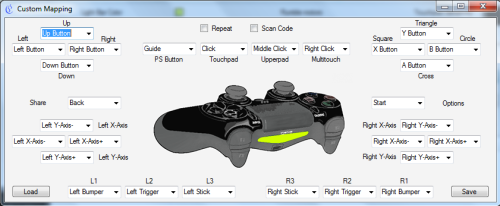
Once you’ve got everything up-and-running, you may wonder why your controller doesn’t seem to be “controlling” anything. Keep in mind that the utility is merely making your PC think that an Xbox 360 controller is plugged in; it’s not mapping keyboard or mouse functions to the DS4 directly. If the game doesn’t support the 360 controller (though many, many do) then the DS4Tool utility isn’t going to make a difference (but a key mapper will). However, it is an important first step in using your DS4 with your PC.
If you want to use the DS4 with your favorite emulator (my original purpose), you’ll need to take this process one step further by downloading and installing a key mapper. Now that your PC recognizes the DS4 as an Xbox 360 controller though, this is a pretty simple process. There are loads of key mappers out there with varying levels of features depending on your needs. I had no high demands; all I wanted to do was put the QWERTY keyboard’s arrows under my left thumb and line up action buttons with my right.
For my purposes, a simple program called Joy2Key (link below) was all I needed. It’s a quick and easy install with very straightforward workings. When you press a button on the DS4, a corresponding “Button X” will highlight on Joy2Key and you can then assign a key. If you play on using the D-pad at all, mapping the arrows to each particular button is a must.

As I said earlier, many commercial games for Windows support the 360 controller so issues in this department should be minimal. Even if they don’t, as long as they use keys on a keyboard you should be able to key map appropriately since your PC itself will now recognize input from the DS4. Emulators are a more finicky bunch and may require a modicum of experimentation. They may natively recognize parts, but not all, of the “360 controller.” It’s important to make note of what your DS4-acting-as-a-360-controller will and won’t do in these programs.
For example, in fMSX, the left joystick controls movement and a few of the action buttons are already mapped. However, the D-pad is not, nor do the triggers have any function. Therefore I had to map out the D-pad (I cannot play old games with a freakin’ joystick… I’m ducking, turning the wrong way, and doing all sorts of crazy shit while just trying to walk forward) and I also used Joy2Key to map things like “Pause” to the triggers. Joy2Key will react differently depending on the program used. Again in fMSX, I had at one point mapped the “attack” and “jump” buttons. It turns out that fMSX already had “jump” and “attack” mapped to the “360 controller,” but in reverse of what I had chosen. Due to this, whenever I pushed either of the buttons, I jumped and attacked simultaneously. In a nutshell, the emulator imposed its own mapping (which Joy2Key did not override), but it also allowed the mapping set in Joy2Key.
This will not always be the case. When using MAME (arcade emulator), nothing specified within Joy2Key worked. It didn’t matter what I did, MAME was able to override any prior key mapping. Luckily MAME supports the 360 controller and provides its own wealth of options when it comes to key mapping, but it goes to show that it’s important to test any given program’s support for the 360 controller before going through the time to key map.
In case I lost you anywhere in there, I wanted to take a moment to recap everything I just explained and why it’s necessary. Though fooling your PC into thinking that DS4 is an Xbox 360 controller and key mapping are 2 separate processes, both may or may not be necessary depending on your needs.
I hope someone, somewhere out there has gotten some use out of all this. I don’t claim to be an expert on any of these matters, and if anyone can offer more information, both general or specific, it would be much appreciated. All of this is reflective of my own trials during the last few days, while on a quest to make emulation a bit more comparable to console gaming. Although using a controller for PC gaming is something that most anyone can potentially benefit from, I realize that this doesn’t represent an optimal solution. I was, however, able to make use of what I had, and this is the method that worked for me (so far).
Please feel free to leave any comments regarding your experience(s) with similar matters, and if you have any questions, email me at thecubist@nerdbacon.com!
Written by The Cubist

I've been using my DS4 for emulation as well, but had no idea about the cool tools for customizing usage of the controller. Thanks for the info! :D

THANK YOU!!!!!!!!!!!!!!!!!!!!!! My DS4 was working great for emulation from day one, however I had a bunch of problems trying to use it with some games on STEAM. This cleared it up right away!

Thank you ! It works like a charm with snes emulators <3


Comments